What Is Really Eating Your Laptop Battery on Linux, and How to Stop It
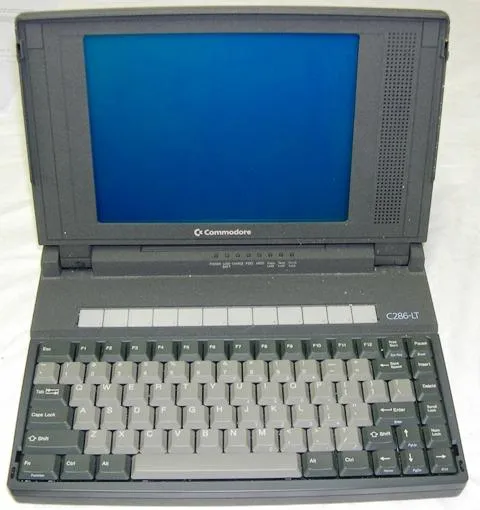
Photo: Museum of Transport and Technology, CC BY 4.0, via Wikimedia Commons
A laptop that managed seven hours on Windows and now wheezes through three and a half on Linux is not a myth, and it is rarely the kernel's fault. In the overwhelming majority of cases the hardware is fine, the battery chemistry is fine, and the fix is a handful of configuration decisions nobody ever told you existed. The reflex advice to 'just install TLP' is roughly a decade old at this point, and on many 2026 distributions it will actively fight the daemon the desktop environment already ships with.
Treat this as a diagnostic walkthrough rather than a configuration dump. Work through it in order and you will know within ten minutes whether you are dealing with a misconfiguration, a firmware problem, or simply a tired cell.
Start with the battery itself
Before touching a single daemon, confirm the pack is worth saving.
upower -i $(upower -e | grep BAT)
Design capacity, current full capacity, and, on hardware that exposes it, cycle count. If energy-full has fallen below roughly 70 percent of energy-full-design, no amount of tuning will win those hours back. Replace the cell first, then optimize.
Also read the raw kernel view, which is often more honest than the desktop's estimate:
cat /sys/class/power_supply/BAT0/status
cat /sys/class/power_supply/BAT0/charge_control_end_threshold
If that second file exists, you already have hardware-level charge limiting and you should be using it. More on that below.
Find out who is actually drawing power
The single most useful tool remains powertop, provided you use it as a measurement instrument and not a magic switch:
sudo powertop --time=120 --html=/tmp/power-report.html
Two minutes of idle measurement will usually name the culprit outright. Read the overview first for package power in watts, then the tunables tab. Resist the urge to hit 'auto-tune' blindly: that button cheerfully disables USB wakeup for your keyboard and mouse, breaks runtime power management on webcams, and is responsible for a surprising share of 'my laptop will not resume' bug reports.
Complement it with two commands that answer different questions:
powerstat -d 0 60 1
turbostat --show PkgWatt,BusWatt,CPU%c1
The first produces a drain-rate curve over a minute and makes an idle regression obvious. The second tells you whether the CPU is genuinely entering deep idle states or merely pretending to.
The 2026 problem: two tools, one owner
Power management on Linux laptops is now split between power-profiles-daemon, which desktop environments use to implement the Balanced, Performance, and Power Saver toggle, and TLP, the long-standing independent tuner. Both write to the same sysfs knobs. Running both is the most common self-inflicted battery wound on the platform.
Check what is active:
systemctl status power-profiles-daemon --no-pager
sudo tlp-stat -s
Pick one. If you value the desktop's profile slider and run a current Fedora, Ubuntu, or Arch install with a recent GNOME or KDE, power-profiles-daemon is the sane default and TLP should be removed. If you need granular control over USB autosuspend, Wi-Fi power saving, and per-device runtime PM, use TLP and mask power-profiles-daemon. Note that several recent Fedora editions have moved to tuned-ppd, which presents the same D-Bus interface on top of tuned; in that case leave tuned alone and do not layer TLP over it.
On AMD hardware, much of the real work now happens in amd-pstate's energy performance preference, which the profile slider sets for you:
cat /sys/devices/system/cpu/cpu0/cpufreq/energy_performance_preference
If that reads 'performance' while the desktop claims Balanced, you have found your problem.
Charge thresholds are the highest-leverage setting on the machine
Lithium cells die from two things: heat and sitting at full charge. A laptop tethered to a desk should be capped at 80 percent or lower, permanently.
ThinkPads expose this through the kernel directly, and both TLP and recent power-profiles-daemon releases can write it. Frameworks handle it in firmware setup. ASUS machines need asusctl. On everything else, look for the sysfs file mentioned earlier and persist the value through a udev rule or your chosen daemon. Writing 80 there will do more for the pack's three-year survival than every other item in this article combined.
The usual suspects, in order of likelihood
A discrete GPU that never powers down is the classic. Check per-device runtime status rather than trusting a vendor utility:
cat /sys/bus/pci/devices/0000:01:00.0/power/runtime_status
A result of 'active' on an idle laptop with no external display is a red flag. NVIDIA's proprietary driver still needs explicit configuration for this, and the various prime and envycontrol helpers exist precisely because the defaults are wrong.
Wi-Fi power saving is second. Verify with iw dev wlan0 get power_save and expect it to be on while unplugged. Third: indexers. Tracker, Baloo, and snapd's refresh timer all wake the disk and CPU on schedules you did not choose. Fourth: suspend that never reaches the deepest state. Confirm with cat /sys/power/mem_sleep and measure overnight drain. Anything beyond one to two percent per hour means the machine is not really asleep.
The ten-minute checklist
- Read
upower -iand decide whether the cell is worth optimizing. - Confirm exactly one of power-profiles-daemon, tuned-ppd, or TLP is active.
- Run a two-minute powertop report and note the top three wakeups.
- Check every PCI device's runtime_status; investigate anything active at idle.
- Verify Wi-Fi power saving and Bluetooth state.
- Set a charge threshold at 80 percent or lower.
- Run
fwupdmgr get-updates; firmware fixes battery life more often than people admit. - Test overnight suspend drain before and after your changes.
Batteries age, and nothing here reverses chemistry. But the gap between a well-configured Linux laptop and a neglected one is routinely two hours of runtime, and every one of those hours is recoverable this afternoon.